Configuration
Learn how to configure models and API Keys in Auto-Coder.Chat.
Configuration
The first step to using Auto-Coder.Chat is configuring the model you want to use. Navigate to your project directory and launch the CLI:
cd your-project
auto-coder.chat
View Available Models
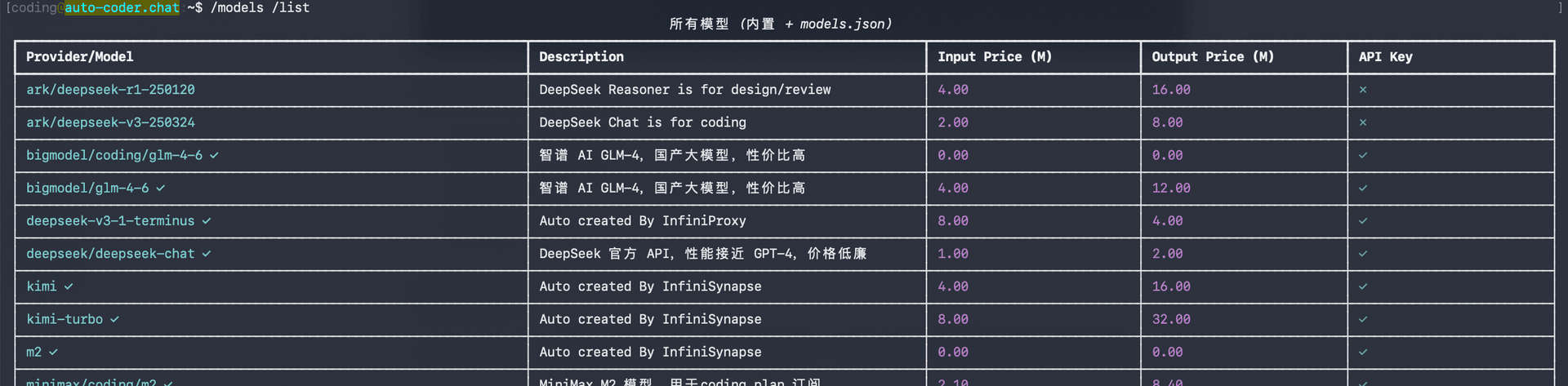
Run the following command to list all available models:
/models /list
You'll see the built-in model list with provider, description, pricing, and API Key status:
Tab Completion: Type
/moand press Tab to auto-complete to/models. Sub-commands also support Tab completion.
Configure Model API Key
Use the /models command to set an API Key for a model:
/models <model_name> <YOUR_API_KEY>
For example, to configure the Volcengine Coding Plan DeepSeek V3.2:
/models volcengine/coding/deepseek-v3.2 YOUR_API_KEYThe first argument is the model name (e.g., volcengine/coding/deepseek-v3.2), and the second is your API Key.
Coding Plan vs Regular API Keys
Models with coding in their name use the provider's Coding Plan — you'll need the corresponding Coding Plan API Key.
| Model Name Example | Type | API Key Required |
|---|---|---|
volcengine/coding/deepseek-v3.2 | Coding Plan | Volcengine Coding Plan API Key |
bigmodel/coding/glm-4-6 | Coding Plan | Zhipu Coding Plan API Key |
deepseek/deepseek-chat | Regular API | DeepSeek official API Key |
ark/deepseek-v3-250324 | Regular API | Volcengine regular API Key |
Quick rule: coding in the name → Coding Plan Key; no coding → standard official API Key.
Configure Vision Model
Auto-Coder.Chat supports a vision model (VL Model) for understanding images, screenshots, and other visual content. Use the /conf command to configure it:
/conf vl_model:volcengine/doubao-seed-1-6-thinkingThe recommended model is volcengine/doubao-seed-1-6-thinking, which excels at image understanding and reasoning.
The vision model also requires a configured API Key. Make sure you've set up the API Key for the model via the
/modelscommand first.
Next Steps
Once your model is configured, see Basic Usage to learn about daily usage.